Every feature, in full.
The complete reference — two panes, the transfer queue, trust and security, and everything smaller. If the landing page told you why, this page tells you exactly how.
Neither side is stuck being “local.”
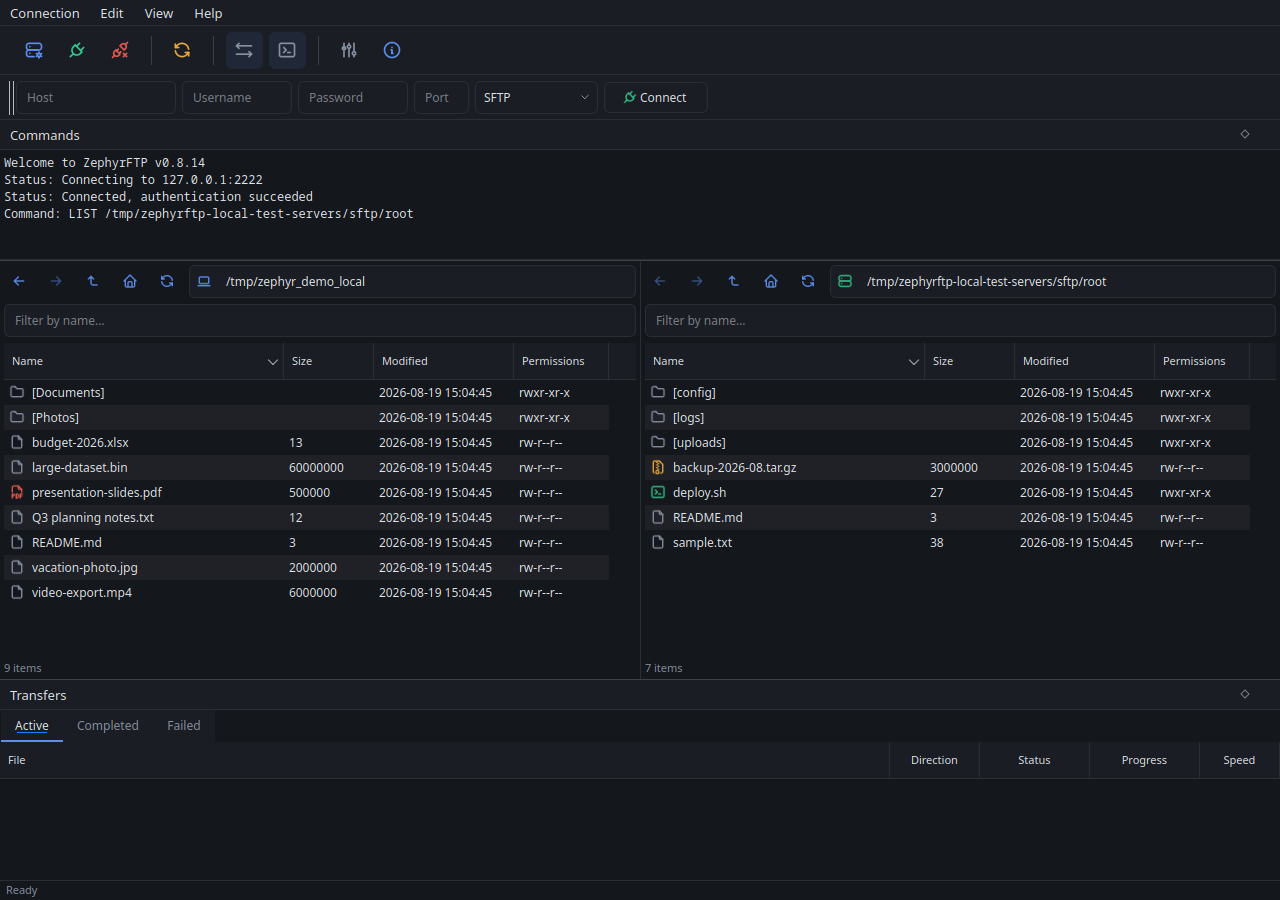
Most clients hard-wire one pane to your computer and the other to a server. Here, each pane has its own connect button in its path bar. Point them wherever you like.
Upload and download
The everyday case. Drag either direction, or double-click a file to send it across.
Server to server
Connect both panes to different hosts and move files between them without opening two windows.
Just a file manager
It opens on your own files and works as a plain two-pane file manager before you connect to anything.
Move instead of copy
When both panes sit on the same connection, “Move Selected” renames server-side in one step rather than downloading and re-uploading. Whole folders too — though it can't merge into a folder that already exists at the destination (see Limitations).
Synchronized browsing
Turn it on and navigating one pane walks the other to the same relative path. Off by default.
Filter a busy directory
Type in the field under either path bar to narrow the listing as you go. Each pane filters independently.
Compare directories
Recursively diff both panes by size and modified time, then tick what you want copied in either direction. Deleting extras is a separate, off-by-default step with its own confirmation.
Recursive delete, with a real warning
Deleting a folder that turns out to have contents doesn't just get refused — you're told exactly how much is inside (“contains 12 files and 3 folders”) before anything is permanently deleted.
Edit in place
Right-click a remote file, open it in your editor, and every save is quietly uploaded back. If a save can't be sent, you're told, with a Retry.
A queue that keeps its promises.
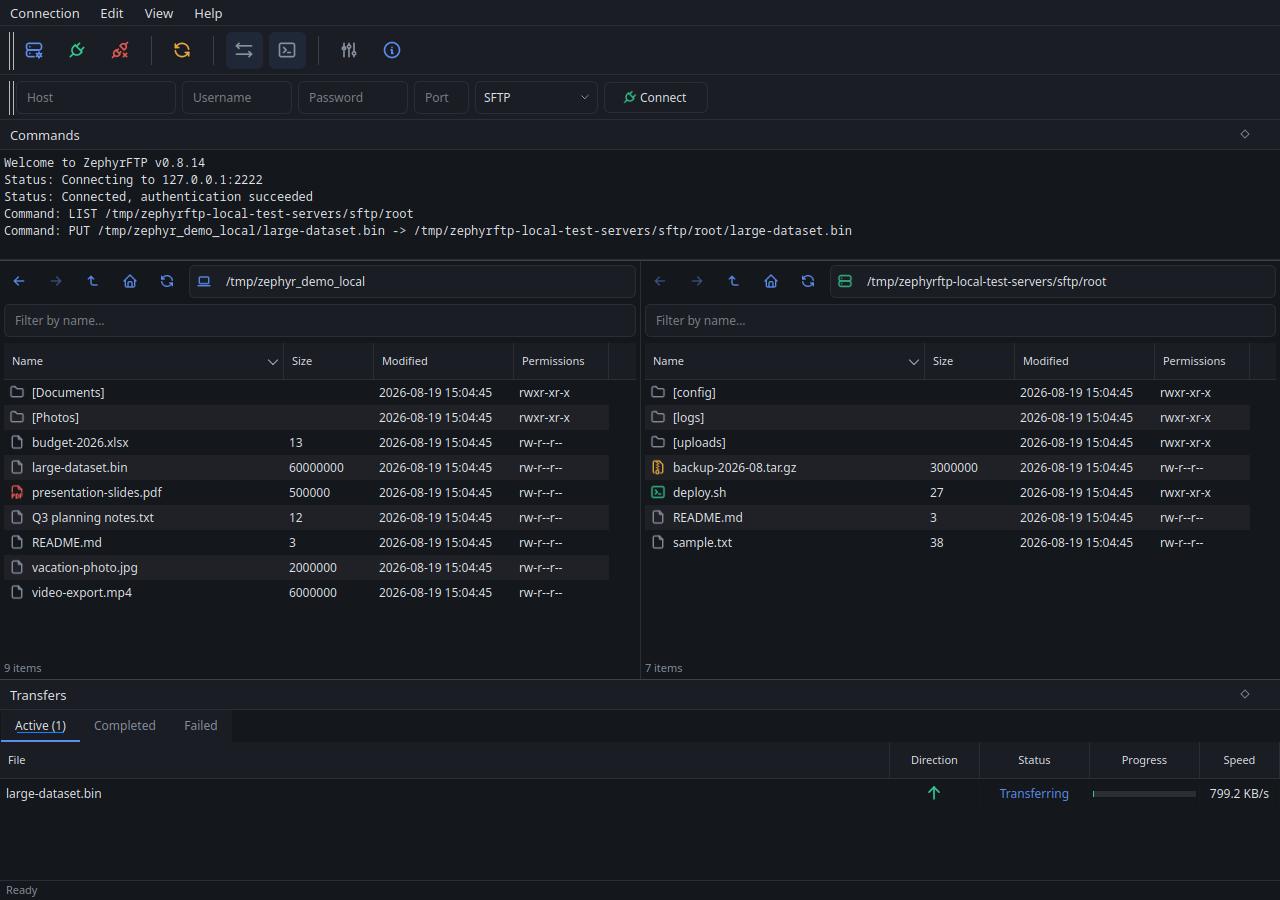
Everything moving is in one panel: what it is, which way it's going, how fast, and how far along. Pause it, resume it, cancel it, retry it.
Survives quitting
Anything queued, paused, or mid-transfer when you close the app is there again next launch. A server transfer picks back up the moment you reconnect to that server — never before, and never by connecting on its own.
Runs in parallel when it can
Uploading on one pane and downloading on the other happen at the same time, automatically. Two transfers that share a connection still run in order, since one SFTP session can't safely do two things at once.
Pause and pick it back up
Stop a large upload or download partway and resume later without starting over. Local-to-local copies can only be cancelled, since there's nothing meaningful to interrupt.
Whole folders, structure intact
Drag a folder, or a mixed selection of files and folders, and everything inside is recreated on the other side — nesting and empty subfolders included. Each file shows up in the queue on its own.
Asked before anything is overwritten
Overwrite or skip, with a checkbox to apply that answer to the rest of the batch. Existing folders offer the same choice: write into it and merge, or skip it entirely.
Bandwidth cap
Set a KB/s limit in Preferences and every transfer paces itself down to it. Per transfer, not one shared ceiling, so two at once can use roughly twice the number you set.
Active, Completed, Failed tabs
The queue splits into three tabs instead of one flat list, so a finished batch or a file worth retrying isn't buried in everything still queued. Right-click a tab header to clear what's done.
Simultaneous connections per site
Open up to 10 connections to the same server (Site Manager, off by default) so a big batch of files moves in genuine parallel instead of queueing through one connection.
Verify a transfer's checksum
Right-click a finished transfer and choose Verify Checksum… to confirm it landed correctly (SHA-256) on both ends. Manual and on demand, never run automatically.
Your password never lands in a config file.
Credentials go to your operating system's own secure store — the same kind of protected keychain your browser uses — not a plain file this app controls.
Host keys are verified, like SSH does it
The first connection to a server shows you its fingerprint and asks you to confirm it. If that fingerprint ever changes later, you get a loud warning instead of a silent risk. On by default.
FTPS certificates, same idea
A certificate that can't be verified automatically — a self-signed one, say — is shown to you for approval, remembered afterward, and flagged if it ever changes. Covers both explicit and implicit FTPS.
Saved sites carry no secrets
The site list is plain JSON with no password in it, saved or not, so it's safe to export and hand to someone else. Tick “Save password” and it goes to the OS credential store instead; the prompt still appears every time, just pre-filled. There is no silent auto-connect.
Works behind a corporate proxy
Set a SOCKS5 or HTTP CONNECT proxy once in Preferences and every SFTP, FTP, and FTPS connection goes through it. One global setting, not per-site — see Limitations.
The small things you'd miss.
Site Manager with folders
Save the hosts you use often, grouped into folders, each with its own starting directory on the server. Import and export the whole list as JSON.
Quick connect
Type [email protected] or ftps://[email protected]:2121 in the toolbar, or fill in the fields including password, and press Enter.
Password or private key
SFTP logs in either way, with passphrase-protected keys supported.
Permissions grid
A checkbox grid for the standard owner/group/other bits with a live octal readout. Works the same on local files, SFTP, and FTP.
Recent Connections
Reconnect to the last 10 servers you connected to ad hoc, without saving them as a site. Nothing is ever stored on disk for these.
Live protocol log
A read-only Commands pane showing real traffic for both panes, docked under the toolbar.
Dark and light themes
Switches instantly, no restart. Both are built on four colors that mean the same thing everywhere: green for connect and upload, blue for navigation and download, amber for caution, red for errors.
Layout is remembered
Window size and both docks — moved, resized, closed, or torn off — come back exactly as you left them. No setting to enable.
Sortable columns
Name, size, modified, or permissions on the panes; file, direction, status, progress, or speed on the queue.
Keyboard shortcuts
Delete to delete, F2 to rename, F5 to refresh, Ctrl+A to select all, Ctrl+C/Ctrl+V to copy a selection across to the other pane.
Drag files to and from your OS
Drag a file from Explorer, Finder, or Nautilus onto a pane to upload it, or drag one out to save it locally — remote files download first, with a visible progress dialog. Only individual files come out, not folders — see Limitations.
Want the scripted/headless side of all this? Scripting reference →